

Introduction
Managing projects can quickly become overwhelming, especially when tasks, deadlines, and team responsibilities start piling up. That is where project tracker templates for Excel come into play. These templates provide a simple yet powerful way to organize your work, monitor progress, and stay on track without needing complex software.
For beginners and intermediate users, Excel offers a familiar environment that makes project tracking both accessible and efficient. Instead of investing in expensive tools, you can use ready-made templates to streamline your workflow. Moreover, Excel allows customization, so you can adapt the template according to your specific needs.
In today’s fast-paced work environment, staying organized is not optional—it is essential. Whether you are managing a small personal project or handling multiple business tasks, having a structured system can make a huge difference. That is why project tracker templates for Excel have become increasingly popular.
What is Project Tracker Templates for Excel?
Project tracker templates for Excel are pre-designed spreadsheets that help you monitor project tasks, deadlines, progress, and resources in one place. These templates act as a central hub where all project-related data is stored and updated regularly.
Typically, a project tracker includes columns such as task name, assigned person, start date, end date, status, and priority level. Some advanced templates also include progress bars, charts, and automated calculations.
The main purpose of these templates is to simplify project management. Instead of manually tracking everything on paper or switching between tools, Excel provides a structured format that keeps everything organized.
Additionally, these templates are flexible. You can modify them to fit different industries, whether it is construction, marketing, IT, or personal planning. This adaptability makes Excel one of the most widely used tools for project tracking.
Why is Project Tracker Templates for Excel Important?
Using project tracker templates for Excel is important because they bring clarity and control to your work. Without a proper tracking system, projects can easily go off track.
First, these templates improve organization. All tasks and deadlines are clearly listed, making it easier to understand what needs to be done and when. As a result, you reduce confusion and increase productivity.
Second, they enhance accountability. When tasks are assigned to specific individuals, everyone knows their responsibilities. This helps teams stay focused and motivated.
Another key benefit is time management. By tracking deadlines and progress, you can identify delays early and take corrective action. This ensures that projects are completed on time.
Finally, Excel templates are cost-effective. Unlike specialized project management tools, Excel is widely available and does not require additional investment. This makes it ideal for small businesses and freelancers.
Detailed Step-by-Step Guide
Step 1: Define Your Project Scope
Start by clearly outlining your project. Identify the main objectives, deliverables, and timeline. This step ensures that your tracker includes all necessary information.
Write down all tasks required to complete the project. Break larger tasks into smaller, manageable steps for better tracking.
Step 2: Open Excel and Choose a Template
Open Excel and either select a built-in template or create one from scratch. If you are a beginner, using a pre-designed template is recommended.
Look for templates that include task lists, timelines, and progress indicators. These features will save time and effort.
Step 3: Set Up Columns
Create essential columns such as:
- Task Name
- Assigned To
- Start Date
- End Date
- Status
- Priority
- Progress Percentage
These columns form the foundation of your project tracker.
Step 4: Add Tasks and Details
Enter all your tasks into the spreadsheet. Assign each task to a team member and set realistic deadlines.
Be specific while entering details. Clear descriptions help avoid misunderstandings later.
Step 5: Use Data Validation
To maintain consistency, use dropdown lists for fields like status and priority. For example, status options can include “Not Started,” “In Progress,” and “Completed.”
This feature ensures uniform data entry across the sheet.
Step 6: Apply Conditional Formatting
Conditional formatting helps highlight important information. For instance:
- Red for overdue tasks
- Yellow for tasks in progress
- Green for completed tasks
This visual representation makes it easier to track progress at a glance.
Step 7: Add Progress Tracking
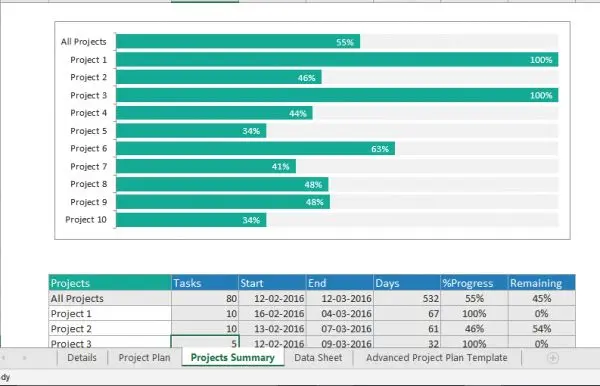
Include a progress percentage column. You can also use progress bars to visualize completion levels.
This helps you quickly understand how much work has been done and what remains.
Step 8: Create Charts and Reports
Excel allows you to create charts for better insights. Use bar charts or pie charts to display task distribution and progress.
Charts make your data easier to understand, especially for presentations.
Step 9: Review and Update Regularly
A project tracker is only useful if it is updated regularly. Make it a habit to review and update the sheet daily or weekly.
Regular updates ensure accurate tracking and better decision-making.
Benefits of Project Tracker Templates for Excel
- Easy to use and widely accessible
- Cost-effective compared to advanced tools
- Customizable to fit different project needs
- Improves organization and clarity
- Enhances team collaboration
- Provides real-time progress tracking
- Helps in meeting deadlines
- Reduces chances of errors
Disadvantages / Risks
- Limited automation compared to specialized software
- Can become complex for large projects
- Requires manual updates
- Risk of data errors if not maintained properly
- Not ideal for very large teams
- Limited integration with other tools
Common Mistakes to Avoid
One common mistake is overcomplicating the template. Adding too many columns and features can make the tracker difficult to use. Keep it simple and focused.
Another mistake is not updating the tracker regularly. An outdated sheet can lead to poor decisions and missed deadlines.
Many users also forget to define clear task responsibilities. Without proper assignment, accountability becomes an issue.
Ignoring data validation is another problem. Inconsistent entries can make the data unreliable.
Lastly, failing to back up your file can result in data loss. Always keep a backup copy of your project tracker.
FAQs
1. Can beginners use project tracker templates for Excel?
Yes, beginners can easily use these templates. Most templates are user-friendly and require basic Excel knowledge.
2. Are Excel project trackers suitable for large projects?
They can handle medium-sized projects well. However, for very large projects, specialized tools may be more efficient.
3. How often should I update my project tracker?
It is best to update it daily or at least weekly to ensure accurate tracking.
4. Can I customize Excel templates?
Yes, Excel templates are fully customizable. You can add or remove columns based on your needs.
5. Do I need advanced Excel skills?
No, basic knowledge is enough to get started. Advanced features can be learned over time.
6. Is Excel better than project management software?
It depends on your needs. Excel is great for simplicity and cost-effectiveness, while software tools offer more advanced features.
Expert Tips & Bonus Points
Start with a simple template and gradually add features as needed. This approach prevents confusion and improves usability.
Use color coding effectively. It makes your tracker visually appealing and easier to understand.
Automate calculations wherever possible. For example, use formulas to calculate progress percentages and deadlines.
Keep your layout clean and organized. Avoid clutter to maintain clarity.
Regularly review your tracker with your team. This ensures everyone is aligned and aware of progress.
Save different versions of your file. This helps track changes and prevents data loss.
Conclusion
Project tracker templates for Excel offer a practical and efficient way to manage tasks, deadlines, and team responsibilities. They are especially useful for beginners and intermediate users who want a simple yet powerful solution without investing in expensive software.
Throughout this guide, you have learned what these templates are, why they are important, and how to use them step by step. From setting up columns to applying formatting and tracking progress, each step plays a crucial role in effective project management.
While Excel may have some limitations, its flexibility and accessibility make it a reliable choice for many users. By avoiding common mistakes and following expert tips, you can maximize the benefits of your project tracker.
