

Introduction
Managing employee attendance is one of the most important tasks for any business. Whether you run a small startup or a growing company, keeping accurate records of employee presence, absences, and working hours is essential. This is where employee attendance templates in Excel come in handy. They provide a simple, cost-effective, and efficient way to track attendance without needing expensive software.
Excel-based attendance templates are widely used because they are easy to customize and require minimal technical knowledge. Even beginners can quickly understand how they work. At the same time, intermediate users can take advantage of advanced features like formulas, conditional formatting, and automation to improve accuracy and save time.
In today’s fast-paced work environment, businesses need reliable systems that help them stay organized. Employee attendance templates in Excel offer a practical solution by reducing manual errors and improving record-keeping. Moreover, they help managers make better decisions regarding payroll, productivity, and workforce planning.
What is Employee Attendance Templates in Excel?
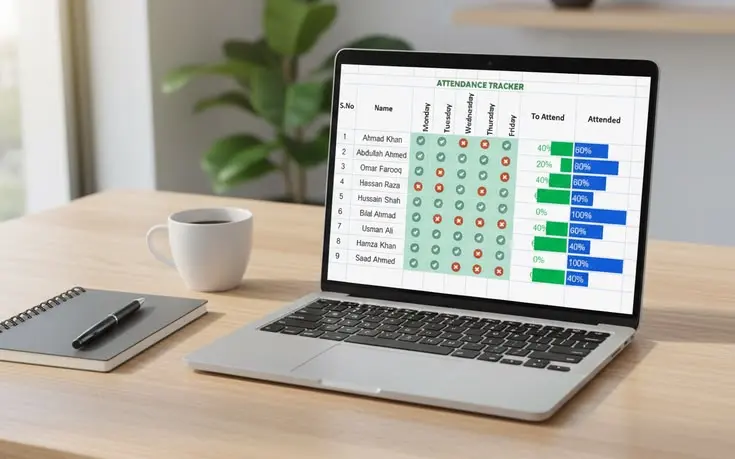
Employee attendance templates in Excel are pre-designed spreadsheets used to track and manage employee attendance data. These templates typically include columns for employee names, dates, check-in and check-out times, total working hours, and absence records.
They serve as a structured system that allows businesses to monitor employee attendance daily, weekly, or monthly. Instead of manually writing records on paper, Excel templates provide a digital solution that is easy to update and maintain.
For example, a basic attendance template might include:
- Employee Name
- Date
- Status (Present, Absent, Leave)
- Check-in Time
- Check-out Time
- Total Hours Worked
More advanced templates can include automated calculations, summaries, and even charts to visualize attendance patterns. This flexibility makes Excel a powerful tool for attendance management.
Why is Employee Attendance Templates in Excel Important?

Employee attendance templates in Excel play a crucial role in maintaining workplace discipline and efficiency. Without a proper system, tracking attendance can become messy and lead to errors.
One of the main reasons these templates are important is accuracy. They help reduce human errors by automating calculations and organizing data clearly. This ensures that payroll processing is fair and precise.
Another key reason is time-saving. Instead of creating attendance records from scratch every day, templates allow you to input data quickly. Over time, this can save hours of administrative work.
Additionally, these templates provide transparency. Both employers and employees can easily review attendance records, which helps build trust and accountability.
They also support better decision-making. By analyzing attendance data, managers can identify patterns such as frequent absences or late arrivals. This information can be used to improve productivity and address workplace issues.
Detailed Step-by-Step Guide
Step 1: Open Excel and Create a New Sheet
Start by opening Microsoft Excel and creating a blank workbook. This will serve as your attendance tracking file.
Step 2: Set Up Basic Columns
Create the following columns in the first row:
- Employee Name
- Date
- Day
- Check-in Time
- Check-out Time
- Total Hours
- Status
Make sure the headings are clear and properly formatted.
Step 3: Enter Employee Names and Dates
Fill in employee names in the first column. Then, add dates for the period you want to track, such as a month.
You can use Excel’s autofill feature to quickly generate a list of dates.
Step 4: Add Formulas for Total Hours
To calculate total working hours, use a formula like:
=Check-out Time – Check-in Time
Format the cell to display time correctly. This will automatically calculate hours worked each day.
Step 5: Use Data Validation for Status
Create a dropdown list for attendance status with options like:
- Present
- Absent
- Leave
This ensures consistency and reduces typing errors.
Step 6: Apply Conditional Formatting
Use conditional formatting to highlight important data. For example:
- Red for absent
- Green for present
- Yellow for leave
This makes the sheet easier to read at a glance.
Step 7: Create Monthly Summary
At the bottom or in a separate sheet, calculate totals such as:
- Total days present
- Total absences
- Total working hours
This helps in payroll processing and performance evaluation.
Step 8: Save and Update Regularly
Save your template and update it daily. Consistent updates ensure accurate records.
Benefits of Employee Attendance Templates in Excel
- Easy to use for beginners and professionals
- Cost-effective with no need for expensive software
- Customizable according to business needs
- Helps maintain accurate attendance records
- Reduces manual errors through automation
- Saves time in data entry and calculations
- Improves payroll accuracy
- Provides clear insights into employee behavior
Disadvantages / Risks
- Requires manual data entry, which can be time-consuming
- Risk of data loss if not backed up properly
- Limited scalability for large organizations
- May become complex with advanced formulas
- Lack of real-time tracking compared to modern systems
- Human errors can still occur if data is entered incorrectly
Common Mistakes to Avoid
One common mistake is not updating the attendance sheet regularly. Delayed entries can lead to inaccurate records and confusion.
Another issue is using inconsistent formats. For example, mixing different date formats can create problems in calculations.
Many users also forget to back up their files. Losing attendance data can cause serious issues, especially during payroll processing.
Overcomplicating the template is another mistake. Adding too many formulas and features can make it difficult to use and maintain.
Lastly, not verifying data entries can lead to errors. Always double-check information to ensure accuracy.
FAQs
1. Can beginners use employee attendance templates in Excel?
Yes, beginners can easily use these templates. Excel provides simple tools and features that are easy to learn. With basic knowledge, anyone can manage attendance effectively.
2. Are employee attendance templates in Excel free?
Many templates are available for free. You can also create your own template without any cost using Excel.
3. Can I automate attendance calculations in Excel?
Yes, Excel allows you to use formulas to automate calculations such as total working hours and attendance summaries.
4. Is Excel suitable for large companies?
Excel works well for small to medium businesses. However, large companies may need advanced software for better scalability and automation.
5. How can I prevent data loss in Excel?
You can prevent data loss by regularly saving your file and creating backups. Using cloud storage is also a good option.
6. Can I customize attendance templates?
Yes, Excel templates are highly customizable. You can add or remove columns based on your requirements.
Expert Tips & Bonus Points
To make the most of employee attendance templates in Excel, keep your design simple and user-friendly. Avoid adding unnecessary complexity.
Use keyboard shortcuts to speed up data entry. This can significantly improve efficiency over time.
Consider using separate sheets for different months. This keeps your data organized and easy to navigate.
Regularly review your attendance data. This helps you identify trends and take action when needed.
If you have intermediate skills, explore features like pivot tables and charts. These tools can provide deeper insights into attendance patterns.
Finally, always maintain a backup of your files. This ensures that your data is safe and accessible when needed.
Conclusion
Employee attendance templates in Excel offer a practical and efficient way to manage workforce attendance. They are simple to use, highly customizable, and suitable for businesses of all sizes. By using these templates, companies can maintain accurate records, improve productivity, and streamline payroll processes.
While Excel may not replace advanced attendance systems for large organizations, it remains a reliable choice for many businesses. With the right setup and consistent use, it can handle most attendance tracking needs effectively.
The key to success lies in keeping the template organized, updating it regularly, and avoiding common mistakes. By following the steps and tips shared in this guide, you can create a powerful attendance tracking system that supports your business operations.
