

Introduction
If you work with data in Excel, learning how to use pivot tables in Excel can completely change the way you analyze information. Instead of manually sorting, filtering, and calculating numbers, pivot tables allow you to summarize large datasets in just a few clicks. This makes your work faster, cleaner, and far more accurate. Many beginners feel intimidated when they first hear about pivot tables, but the truth is that they are one of the most user-friendly tools in Excel once you understand the basics.
In today’s data-driven world, businesses, students, and professionals rely on Excel for reporting and decision-making. Whether you are analyzing sales reports, tracking expenses, or studying performance data, pivot tables help you turn raw data into meaningful insights. This guide will walk you step-by-step through everything you need to know about how to use pivot tables in Excel, from basic setup to advanced tips. By the end, you will be able to confidently create and use pivot tables in real projects.
What is How to Use Pivot Tables in Excel?
Understanding how to use pivot tables in Excel starts with knowing what a pivot table actually is. A pivot table is a built-in Excel tool that summarizes, organizes, and analyzes large sets of data. It allows you to rotate or “pivot” your data so you can view it from different perspectives without changing the original dataset.
For example, if you have a sales sheet with thousands of rows, a pivot table can instantly show you total sales by product, region, or month. Instead of writing complex formulas, Excel does the heavy lifting for you.
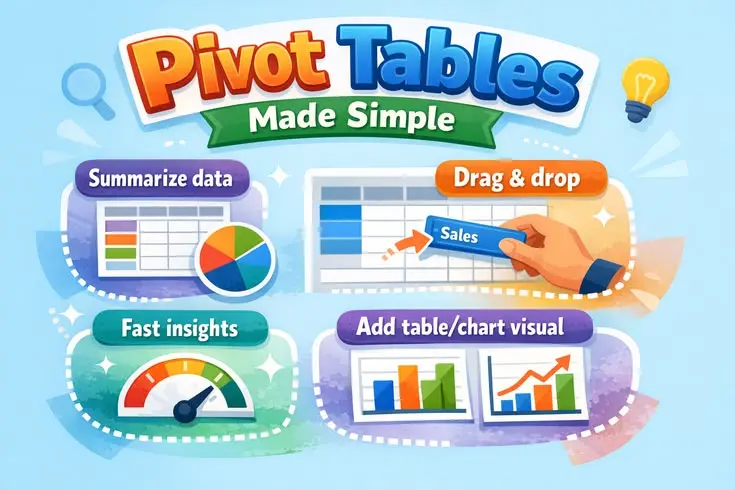
Pivot tables are especially useful because they are dynamic. You can change fields, drag and drop categories, and instantly update results. This flexibility is what makes learning how to use pivot tables in Excel so valuable for beginners and professionals alike.
Why is How to Use Pivot Tables in Excel Important?
Knowing how to use pivot tables in Excel is important because it saves time and improves accuracy in data analysis. Without pivot tables, you would need to manually sort and calculate data, which increases the chances of errors.
Another reason pivot tables are important is that they help in decision-making. Businesses use them to identify trends, compare performance, and generate reports quickly. For students and freelancers, pivot tables make assignments and projects easier to manage.
They also improve productivity. Instead of spending hours creating reports, you can generate insights in minutes. This is why Excel experts strongly recommend mastering how to use pivot tables in Excel early in your learning journey.
Detailed Step-by-Step Guide
Step 1: Prepare Your Data
Before learning how to use pivot tables in Excel, make sure your data is organized properly. Your dataset should have:
- Clear column headers
- No blank rows or columns
- Consistent data format
A well-structured dataset ensures your pivot table works correctly.
Step 2: Insert a Pivot Table
To begin, select your data range. Then go to the Insert tab and click PivotTable. Excel will ask you where you want to place the pivot table. You can choose a new worksheet for better organization.
This is the foundation of how to use pivot tables in Excel effectively.
Step 3: Choose Fields
Once the pivot table is created, you will see a field list. This is where you decide what data to analyze. Drag fields into:
- Rows
- Columns
- Values
- Filters
For example, you can drag “Product” into rows and “Sales” into values to see total sales per product.
Step 4: Customize Your Table
Now you can modify your pivot table. You can change calculations, apply filters, and sort data. This flexibility is a key part of how to use pivot tables in Excel for real-world analysis.
Step 5: Refresh Data
If your original data changes, simply click refresh on the pivot table. This ensures your report stays updated without rebuilding it.
Benefits of How to Use Pivot Tables in Excel

- Saves time in data analysis
- Reduces manual work and errors
- Helps summarize large datasets easily
- Improves reporting efficiency
- Makes data visualization simple
- Allows quick comparisons
- No advanced formulas required
These benefits clearly show why learning how to use pivot tables in Excel is essential for anyone working with data.
Disadvantages / Risks
- Can be confusing for absolute beginners
- Requires properly structured data
- Large datasets may slow performance
- Limited customization compared to advanced BI tools
- Mistakes in setup can lead to incorrect results
Even though there are some limitations, they are minor compared to the advantages of using pivot tables.
Common Mistakes to Avoid
Many beginners struggle when learning how to use pivot tables in Excel because of simple mistakes:
- Not organizing data properly before creating a pivot table
- Leaving blank cells in the dataset
- Using inconsistent data formats
- Forgetting to refresh the pivot table
- Adding too many fields, making the table confusing
Avoiding these mistakes will help you get accurate and clean results.
FAQs
1. What is the main purpose of pivot tables?
Pivot tables are used to summarize and analyze large datasets quickly without using complex formulas.
2. Is it hard to learn how to use pivot tables in Excel?
No, it is not hard. Once you understand the drag-and-drop system, it becomes very easy.
3. Can pivot tables handle large data?
Yes, pivot tables are designed to handle large datasets efficiently, although very large files may slow down slightly.
4. Do pivot tables change original data?
No, pivot tables only analyze data. They do not modify your original dataset.
5. Can I update pivot tables automatically?
You can refresh them manually or set them to update when the file is opened.
6. Why is my pivot table not working correctly?
This usually happens due to empty cells, incorrect data formatting, or unstructured datasets.
Expert Tips & Bonus Points
If you want to master how to use pivot tables in Excel, follow these expert tips:
- Always convert your data into a table before creating a pivot table
- Use filters to focus on specific insights
- Experiment with different layouts for better visualization
- Use slicers for interactive reports
- Combine pivot tables with charts for better presentations
- Keep your dataset clean and updated
These small improvements can make your reports look more professional and easier to understand.
Conclusion
Learning how to use pivot tables in Excel is one of the most valuable skills for anyone who works with data. It simplifies complex analysis and turns large datasets into clear, actionable insights. Whether you are a student, business professional, or freelancer, pivot tables can save you time and improve your productivity significantly.
Once you understand the basic steps organizing data, inserting a pivot table, choosing fields, and customizing results you can start analyzing information in a much smarter way. Over time, as you practice, you will become faster and more confident in handling different types of data.
The real power of Excel lies in tools like pivot tables that reduce effort while increasing accuracy. By mastering how to use pivot tables in Excel, you are not just learning a feature you are upgrading your entire approach to data analysis.
